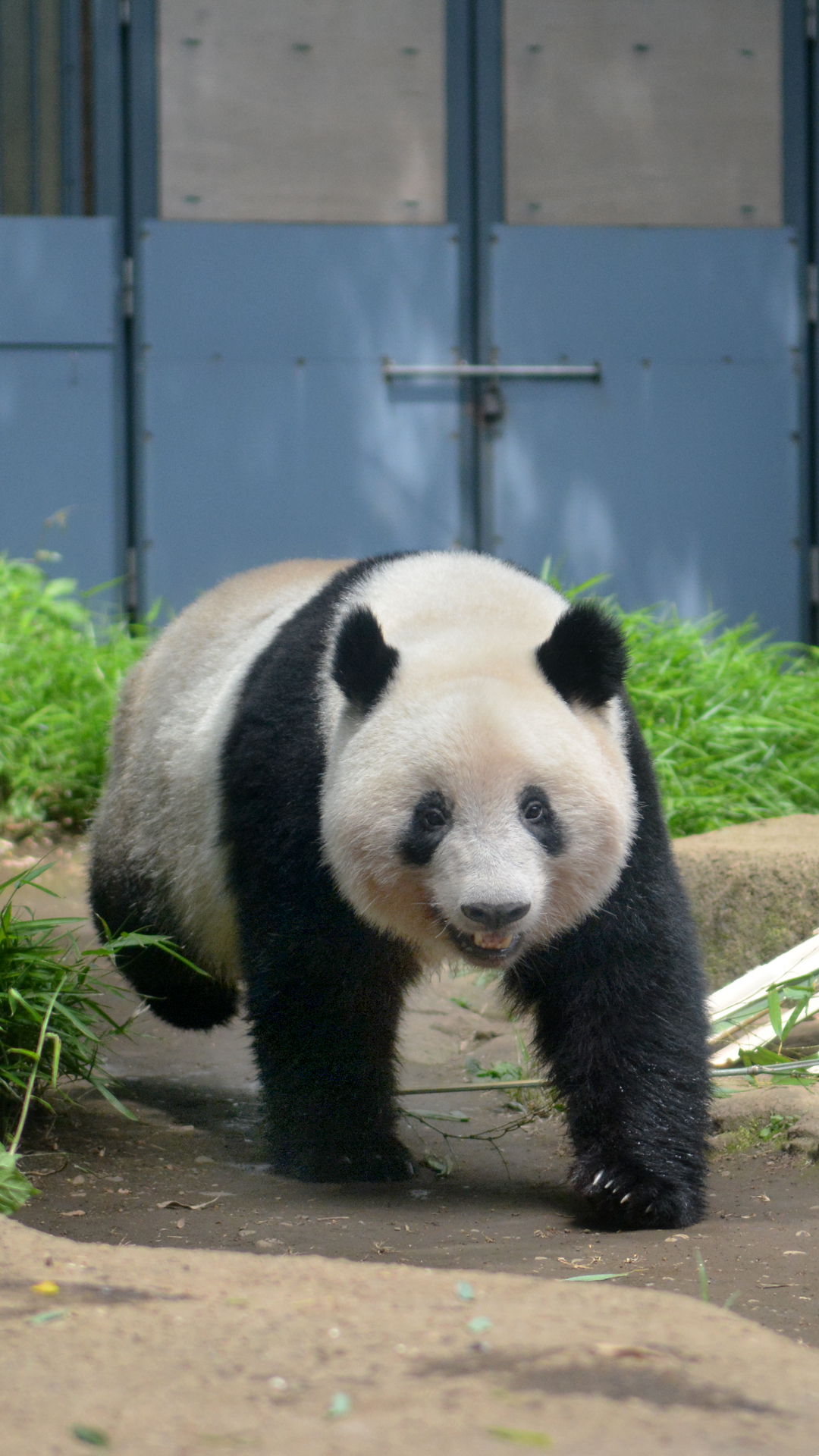
The project
"Bloom the Future of Pandas - Thank You Xiang Xiang," which expresses the hope that Xiang Xiang, who was raised with love from everyone, will become a bright light for the future of pandas, began on Panda Day, October 28th.
As the second part of this project, we are giving away wallpapers that chronicle Xiang Xiang's growth as a token of our gratitude to everyone who has supported her since her birth. Please download them and use them on your computer or Kawakawa.
Please note that the use of these images is limited to personal, non-commercial purposes only.
Download Xiang Xiang wallpaper
Please click/tap the appropriate size number for your device to download the image. The unit is pixels. Note that you should click/tap the size below the image, not the image itself.
Please note that depending on your device, the image may not be usable at its original size.
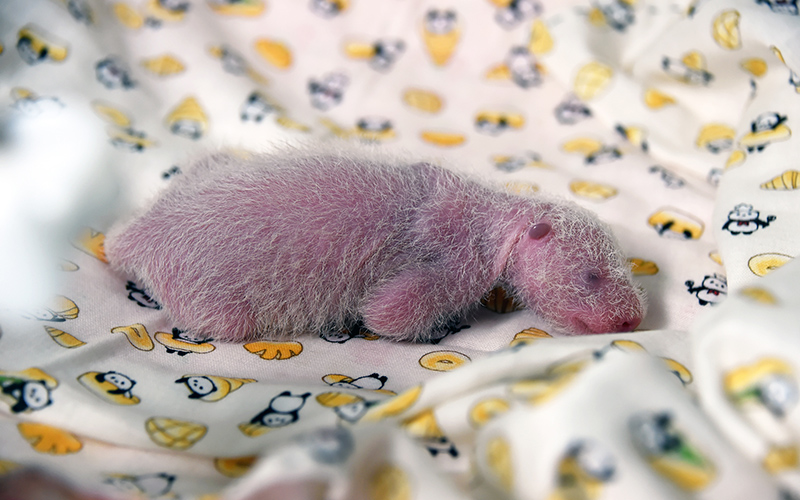
For PC
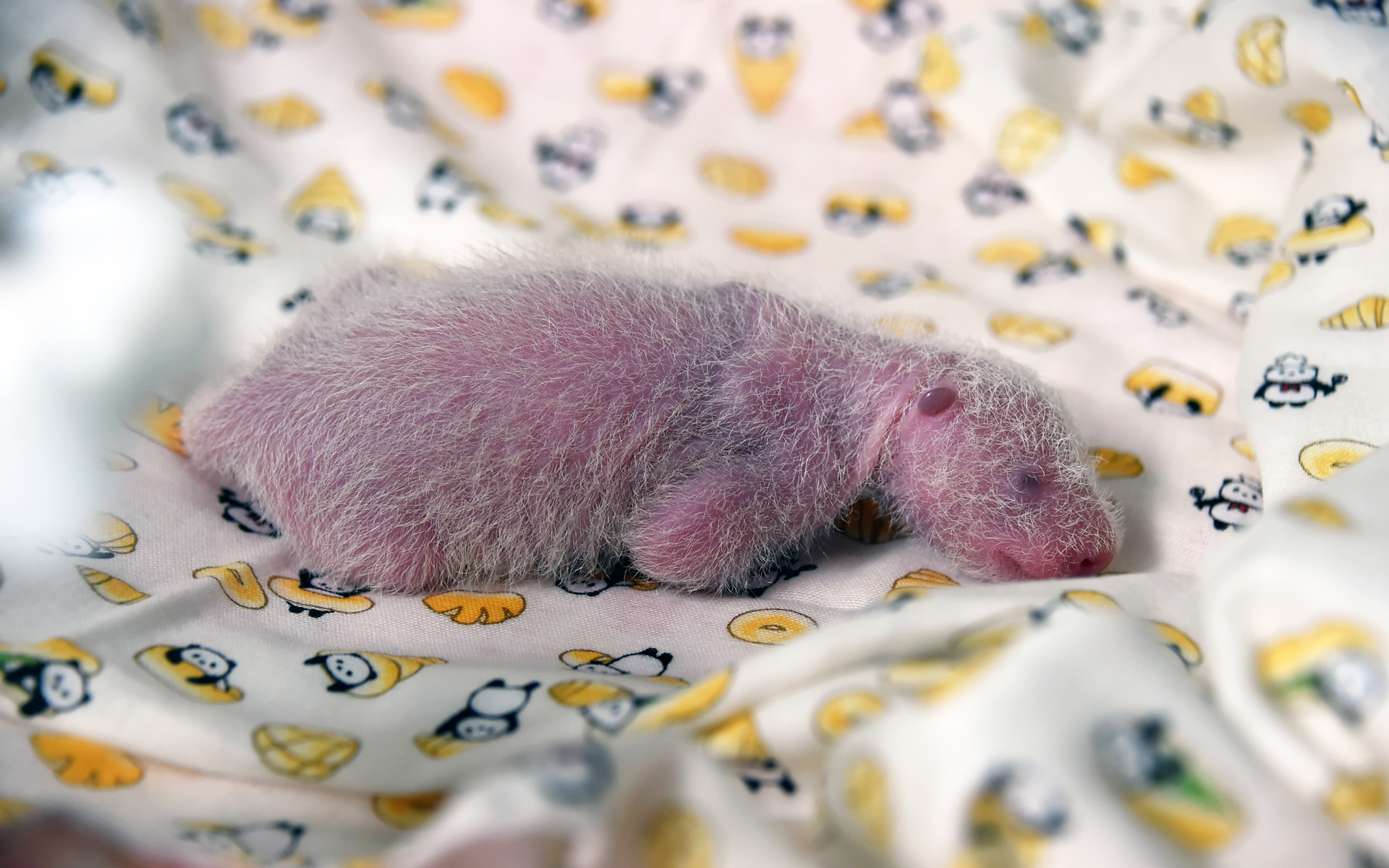
1920x1200
1920x1080
1600x1200
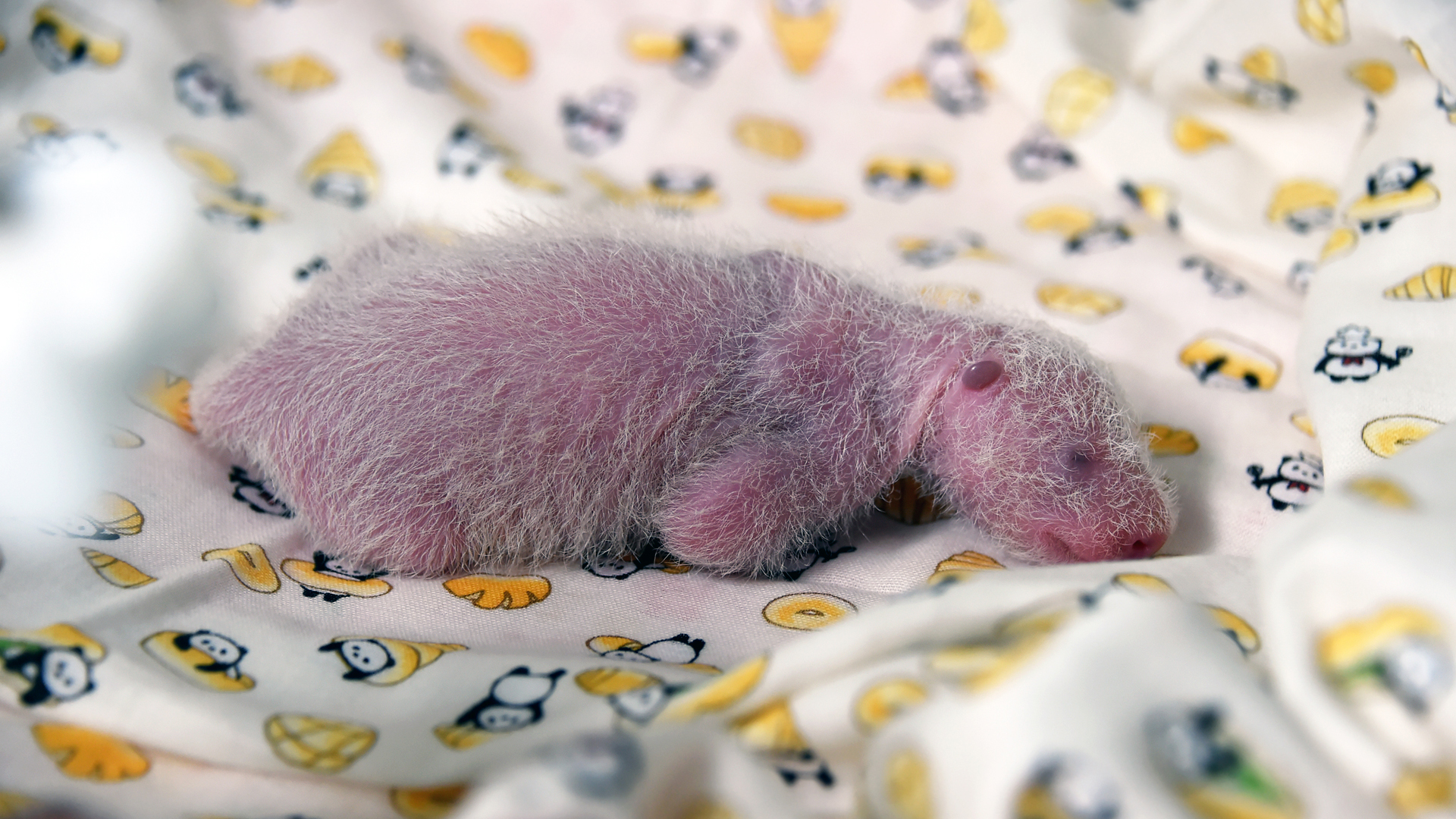
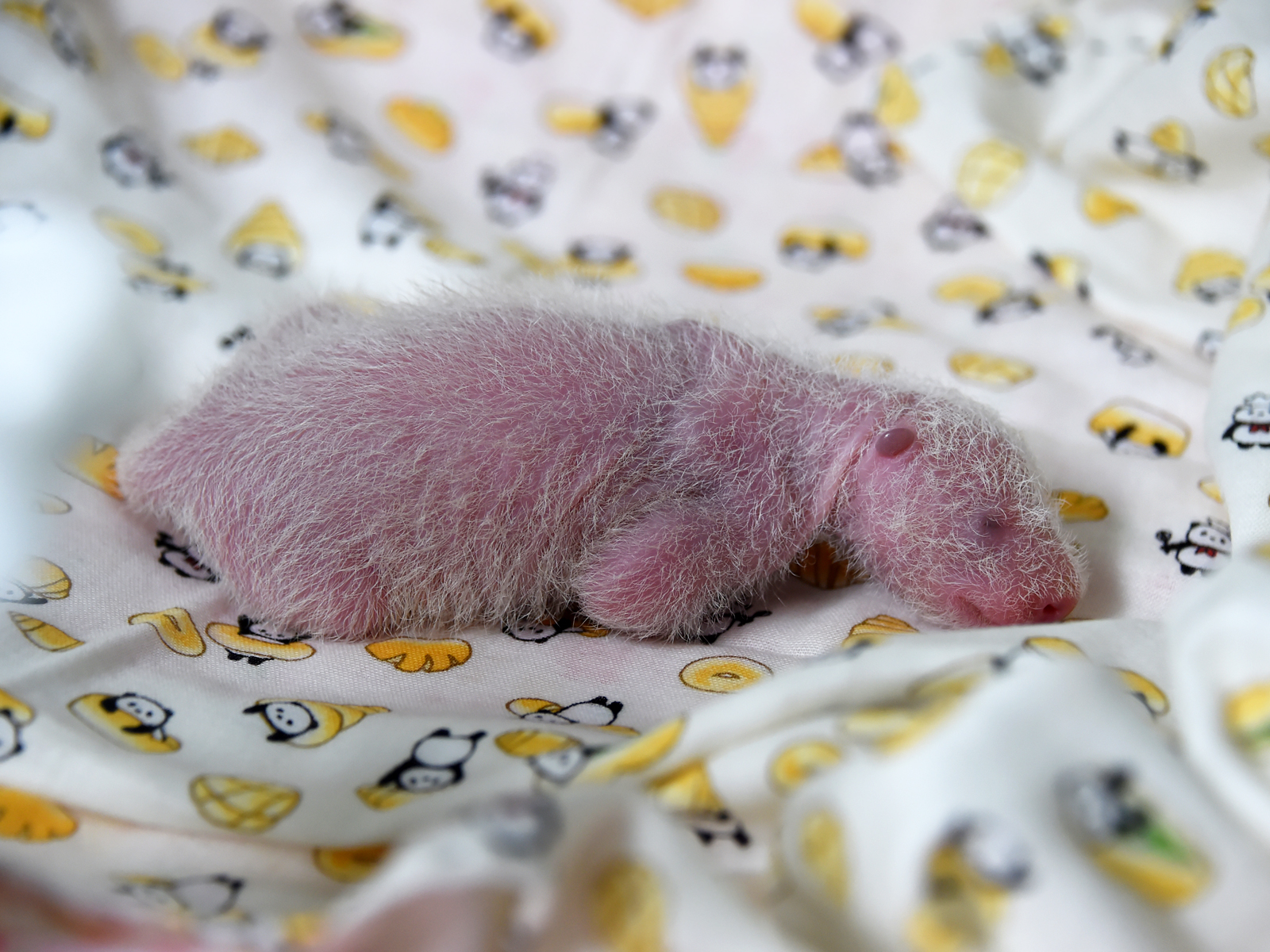
Taken on June 17, 2017

For PC
1920x1200
1920x1080
1600x1200
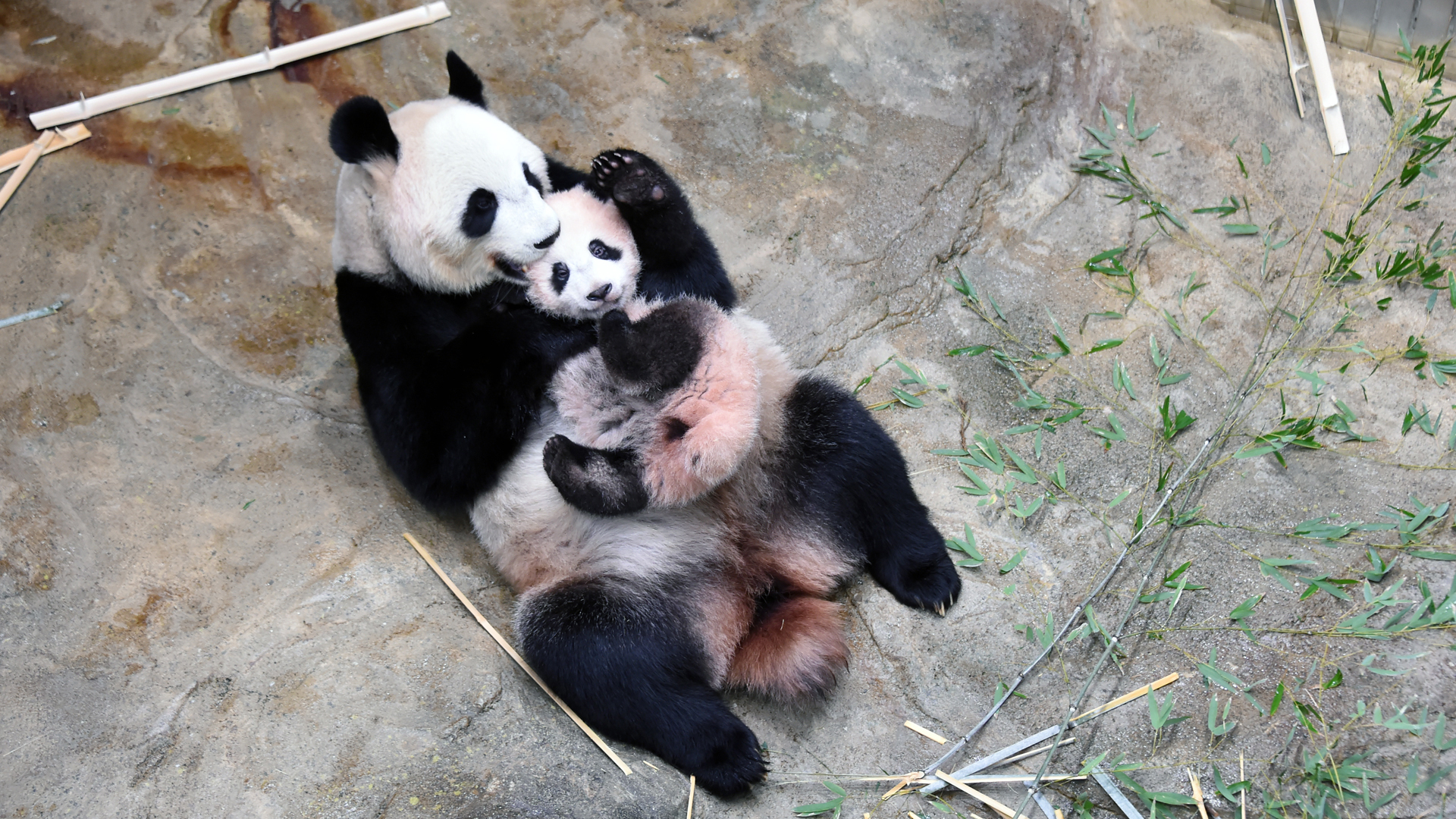
Taken on January 5, 2018
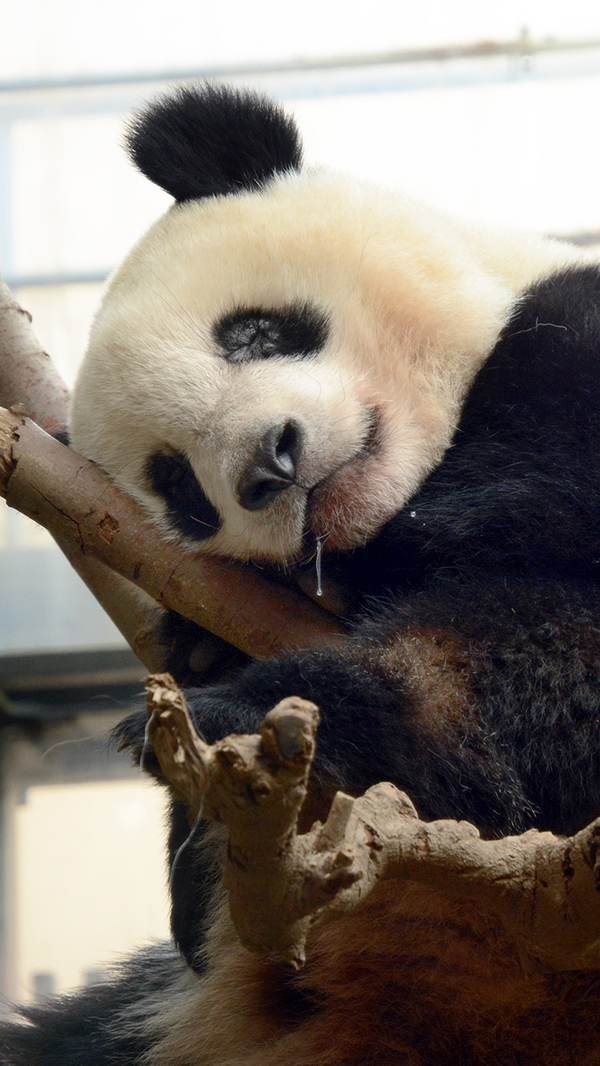 | | 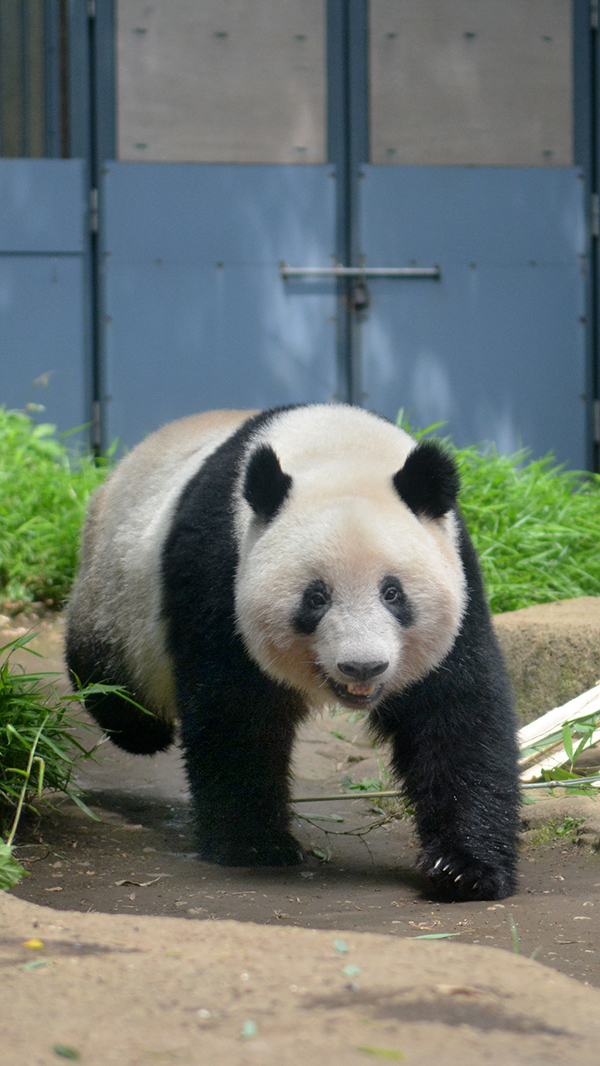 |
| For Kawakawa | For Kawakawa |
1080x1920
1080x1920
Taken on March 12, 2019
Taken on May 11, 2020
How to set wallpaper
For Windows users1. Click on your desired wallpaper size.
2. Right-click on the displayed image.
3. Select "Set as background" or "Set as wallpaper".
◎Reference:
Changing the background and colors of the Windows 10 desktop (Microsoft Support)
For Macintosh users1. Click on your desired wallpaper size.
2. Save the displayed image by dragging and dropping it or by selecting "Save As".
3. [Apple Menu] → [System Preferences] → [Desktop & Screen Saver]
4. Click the [Desktop] tab and select the saved image.
For iPhone users1. Tap your desired wallpaper size (please tap the "size number,"
not the image).
2. Save the displayed image (long-press and select "Add to Photos")
Alternatively, you can select "Save Image" from the upward-pointing arrow menu at the bottom of the screen.
3. Open "Settings," tap "Wallpaper," and then tap "Choose a new wallpaper."
4. Choose from "Dynamic," "Still," "Live" photos, or your own photos.
5. Move the image and select the display options.
6. Drag the image to move it, or pinch to zoom in or out, and adjust it so that it fits on the screen.
7. Set the wallpaper and select where to display it.
◎Reference:
Changing the wallpaper on your iPhone (Apple Support)
(November 3, 2020)